Frontend
Pages
Overview
simpliPFy is a single page application. This is due to the loading times of Pyodide. Pyodide is used in for the calculations and simplifications. Pyodide is a Python interpreter ported to Webassembly. It is easiest to avoid reloading Pyodide by not changing the webpage while navigating. For intuitivity the simplipfy.org appears to have pages. This is realised by containers in the index.html file.
<!--####################################################################################################
####################################        Landing page       #########################################
#####################################################################################################-->
<div class="container-fluid m-0 p-0 text-center justify-content-center" id="landing-page-container"></div>
In the comment the page name is noted to structure the index.html. The container beneath represents a page.
To show a page the style attribute is set to block. To hide a page the style attribute is set to none.
The logic of the pages is encapsulated in the Pages class. A Page needs to do the following basic things:
show
hide
update Language
update Color ( change from dark to light mode or vise versa)
A Page displays some content. The content on a Page has some functions in common with the Pages, like
changing color and language. Therefore the Pages and Content share the same base class FunctionsInterface.
In JavaScript there are no Interfaces but the class shall be treated as one. It does not make sense to create
instances of the FunctionsInterface class. But it “asserts” that each child has common functions that can be called.
(If you update the picture below make sure it has as viewbox attribute to assert the whole picture is shown)
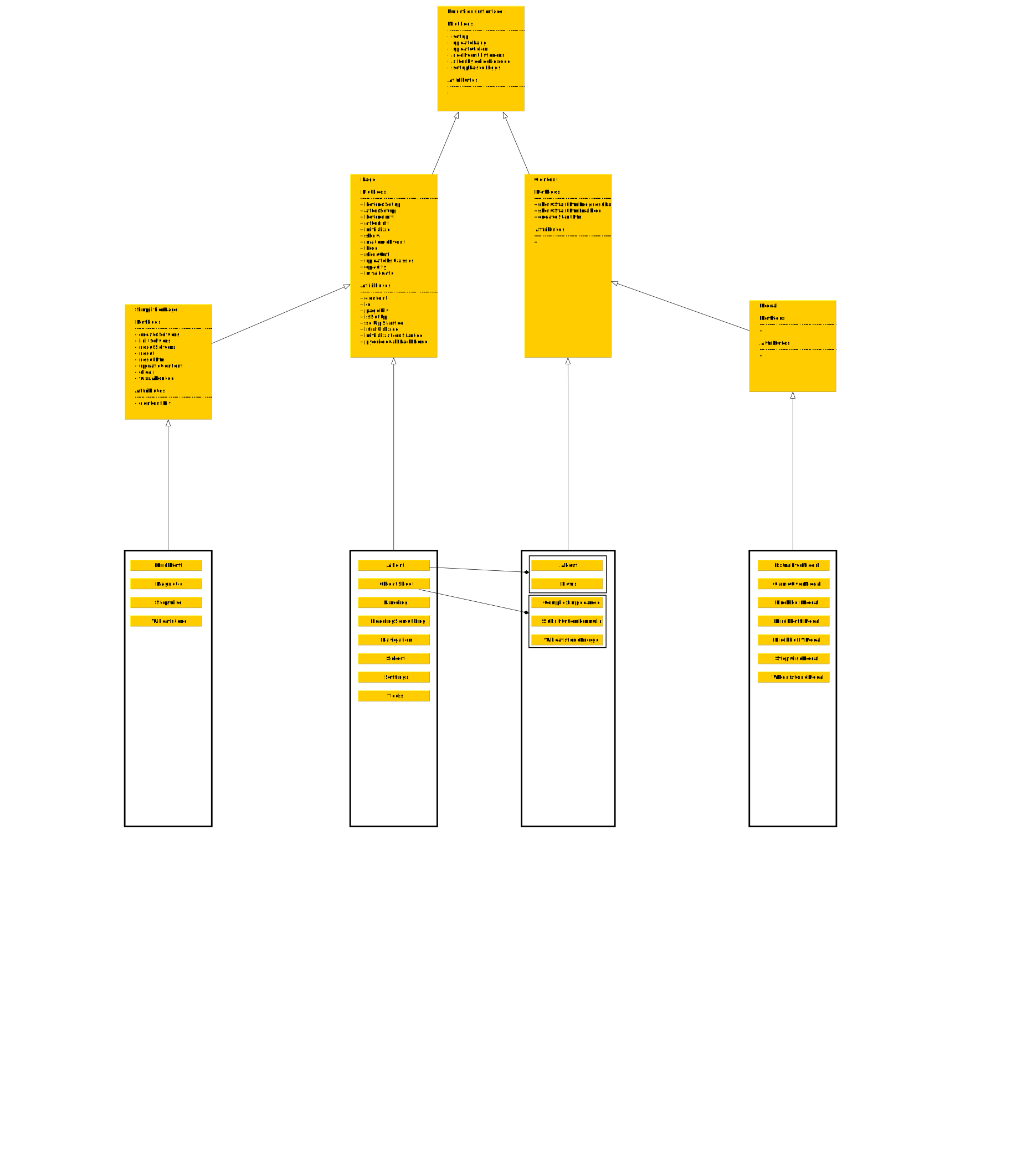
A Page is made up of Content. Because Content and Page share the same base functions like updateLang() and
updateColor() a Page does not need to know how the Content it displays behaves on changes it simply calls the
implementation of the Content. This asserts consistency throughout the code if updateLang() on a Page
is called that means updateLang() is called on each Content the Page displays. The FunctionsInterface
may be extended if there are actions that make sense on a Page and the Content it displays. The diagram
may be outdated if you need the functions on each class see the API-Documentation.
Implement new Page
At .../Inskale/Pyodide/src/pages/template are templates for:
page implementation
content implementation
modal implementation
Implement the specified functions, add new ones if necessary or usefull for the implementation of the Page.
Always see the base implementation maybe this does all you need. Always call the base implementation to assert
class internal values are set i necessary.
Setup
use the super.beforeSetup() and the super.afterSetup as shown in the template:
setup() {
    if (!super.beforeSetup()) return;
    //class specific setup of content
    super.afterSetup();
}
setup adds the html code element of the page to the index.html super.beforeSetup asserts:
that the setup wasn’t already started
the page div is hidden.
super.afterInit asserts:
that the eventlisteners are added to the page (only possible after the setup)
that the internal values of the class represent that the class was setup
Initialize
use the super.beforeInit() and the super.afterInit as shown in the template:
async initialize() {
    if (!super.beforeInit()) return awaitVal(() => this.isInitialized, () => {}); //this could create an endless wait if a class is not setup and the init is not called again
    // class specific init of content
    super.afterInit();
}
initialize generates or updates elements that wait for other values, files or data and therefore is async. If called twice returns a promise which resolves when the page is initialized and therefore ready to be displayed.
super.beforeInit asserts:
that the init wasn’t already started
the page is setup (if not calls the setup with a warning)
super.afterInit asserts:
that the internal values of the class represent that the class was initialized
updates the color of the page
updates the language of the page
Selector
A selector is a wrapper for the combination of an accordion that has a carousel in each of its elements. To use the bootstrap functionality of an accordion it needs unique ids. The selector class generates unique ids to avoid id collision.
The main div gets an id that starts with acc and is appended by an index that is incremented
with each created selector e.g. the first one has the id acc-0. Each id inside the accordion starts
with the id of the main div. Across the accordion the id are appended to describe the according
part of the accordion e.g. acc-0-item-res describes the accordion 0, the an item of the accordion,
in the carousel of the item are the circuits that are stored in the resistors folder in the circuit zip.
The body of the accordion item is appended by body e.g. acc-0-item-res-body.
An element that lives inside the carousel inside the accordion body is appended by its index e.g.
acc-0-item-res-body-0
Classes used by Selector
The selector uses two classes to delegate functionality:
SelectorCarousel
CounterManager
Selector Carousel
Builds the carousel that is displayed inside an accordion item and manages the data, state and events on the carousel
CounterManager
Builds the CounterElements that are displayed behind a accordion heading element and manages the data, state and events on the CounterElements
Language Management
Structure
The language files and Language Manager is under .../Inskale/Pyodide/src/scripts/languages. Each language gets a
Folder with the official language abbreviation. A list of those abbreviations can be found on Wikipedia.
Ideally each page gets its own language file. Due to legacy code this is not always the case.
All files in the language folder are concatenated into one file e.g. for english lang.en.js.
This shortens loading times.
Adding a new language
If you add a new Language you have to add its abbreviation to .../Inskale/Pyodide/src/scripts/definitions/languageSymbols.js.
This is necessary because not all languages are loaded at startup. English is always loaded any other language is
loaded on demand.
The simplest way to add a new Language is to copy an existing language and rename the folder and files.
In the .../Inskale/Pyodide/src/scripts/languages/languageManager.js you habe to adjust:
setLang(lang)
setBrowserLang()
And add:
setLang<lang abbreviation>() [e.g. setLangEn()]
Adjust the layout .../Inskale/Pyodide/index.html at the div with the id <div id="lang-dropdown" class="dropdown">.
Adjust this <li> element:
<li>
   <a id="select-english" class="d-flex lang-selector" style="text-decoration: none; color:white">
       <img src="src/resources/navigation/uk.png" class="flag my-auto mx-2" alt="englishFlag">
       <p class="my-auto" style="font-size: 20px">English</p>
   </a>
</li>
Adjust the following things:
change the id from
select-englishto select-<newLanguageName>add an flag image to
.../Inskale/Pyodide/src/resources/navigationand adjust the img src linkchange
Englishin the <p> tag to the new language name
And copy it into the <ul> tag under the last <li> element in index.html.
Adjust the dropdown in the Navigation sidebar at .../Inskale/Pyodide/src/pages/navigation/sideBar.js
add class member:
this.select<newLangName> = document.getElementById("select-<newLanguageName>");this references the <li> element created earlier and added to theindex.htmlso the ids have to match. The class member is for internal use to avoid having to rewritedocument.getElement...quite some times.add a event listener for the added <li> element
this.select<newLangName>.addEventListener("click",async () => {
    await languageManager.setLang<newLangAbbreviation>();
    pageManager.updateLang();
})
How it works
Each text you see on simplipfy.org is loaded from a language file. Those language files consist of Objects like this:
landingEnTexts = {
startBtn:
    "START",
landingPageGreeting:
    "a free browser tool for learning<br>" +
    "how to simplify electrical circuits",
keyFeature1heading:
    "Understanding",
...
}
those Objects always include the language abbreviation to distinguish between languages and avoid variable clashing in the global scope.
The language objects are all combined in lang.<language abbreviation>.js:
window.english = {
    landingPage: landingEnTexts,
    selector: selectorEnTexts,
    alerts: alertsEnTexts,
    ...
}
Each file must have the same structure otherwise the language switching won’t work.
The LanguageManager class
The LanguageManager class is in .../Inskale/Pyodide/src/scripts/languages/languageManager.js. It can be used in the
project to retrieve language strings from the language files. It always returns the correct string for the currently set
language. Each page and content uses the language manager to get the current language strings on the page setup and on
language updates that are triggered by a language change. To get a language string use:
languageManager.currentLang...
this is a getter and returns a proxy. This way each call to a language is guarded and if it fails because a string is
not defined it automatically falls back to english. Therefore always implement new strings in english then in other languages.
If the string also is not in the english lang files it will warn in the console and return ! undefined ! as a string.
Storage Management
The local storge is managed by the LocalStorageManager. The LocalStorageManager
has members that are derived from LocalStorageWriter treat LocalStorageWriter as an abstract class.
Each value saved to the local storage shall be stored with a class derived from LocalStorageWriter this way
misspelling and creating duplicates is avoided and logic to retrieve and save data is moved to a fix place.
LocalStorageWriter
Supports writing and reading values from and to the local storage of the browser
Save a new Value or Object
class SomeValueToSave extends LocalStorageWriter{

    constructor() {
        super("<keyName e.g. ClassName>");
    }

    save(){
        super.set(pageName);
    }

    load() {
        let [success, pageName] = super.get()
        if (!success) {
            this.save("newLandingPage");
        }
        return [true, pageName]
    }
}
Each class should support save and load functions.
load() returns the object or value loaded
save() takes in the object or value converts it to a json string if it is a object or a plain string otherwise
constructor() defines the key used in the local storage
Each object derived from LocalStorageWriter has the _get, _set and _delete methods treat them as private.
Those directly interact with the local storage using them would defeat the purpose of the extended classes.
.bundleLast Files
Those files mark directories where all files are combined into a <folderName>.bundle.js file including subdirectories.
This is done when .../Inskale/Pyodide/Scripts/cli/buildBundles.py is executed. The script is integrated in the build
process. Combining multiple files into one bundle reduces loading time because it removes loading overhead for multiple
small files.
The file named in .bundleLast is appended to the bundle last to avoid declaration errors if js files rely on each other.
You can also creat a specific order by adding all files to the .bundleLast file in the order you want them to be
append to the bundle file. The bundle files are only visible in .../Inskale/Pyodide/dist because they are moved
in the build process. If you see them in your project your build process certainly failed. Having the bundles in the
project structure hurts the idea because of duplicate code and references if you configure your ide exclude
.../Inskale/Pyodide/dist from your project files.
Definitions
To avoid cluttering the window with variables the definitions used in this project are defined in files at
.../Inskale/Pyodide/src/scripts/definitions and appended to an object called definitions shown with the example
of the allowed directory names of a circuit file:
/** @type {{allowedDirNames: Object<string,string>}} */
window.definitions = window.definitions || {};
window.definitions.allowedDirNames = {
    quickstart: "quickstart",
    resistor: "resistor",
    symbolic: "symbolic",
    capacitor: "capacitor",
    inductor: "inductor",
    mixed: "mixed",
    kirchhoff: "kirchhoff",
    wheatstone: "wheatstone",
    magnetic: "magnetic"
}
With the exception of the class ColorDefinitions.
Matomo
Matomo tracking
This website is using matomo to track user actions. The focus is set on respecting the user privacy which means some things can not be tracked, for example returning users. However, specific events can still be analyzed, helping to see how the users interact with simplipfy.
Events
The following events are tracked manually by the frontend:
Circuit Events (selected circuit, circuit finished/aborted, …)
Error Events (failure to load, …)
Configuration Events (dark mode, language)
If you want to adopt some of the functionality, you can use the matomoHelper.js file in the src/scripts/utils directory.
It specifies different actions like
const circuitActions = {
    Finished: "Fertig",
    Aborted: "Abgebrochen",
    Reset: "Reset",
    ErrCanNotSimpl: "Kann nicht vereinfacht werden",
    ViewVcExplanation: "VC Rechnung angeschaut",
    ViewZExplanation: "Z Rechnung angeschaut",
    ViewTotalExplanation: "Gesamtrechnung angeschaut",
    ViewSolutions: "Lösungen angeschaut",
}
The events are currently sent on german, the names themselves don’t need to be exactly this, however it is a good idea to have a consistent naming scheme, meaning you should not change the names because then the analysis is split between different names for the same event.
Usage
Circuit Event
Use the pushCircuitEventMatomo(action, value=-1) function to send a circuit event to Matomo.
Action can be one of the defined circuitActions.
Error Event
Use the pushErrorEventMatomo(action, error) function to send an error event to Matomo,
where action is a defined errorActions and error is the thrown error or an error string.
Configuration Event
Use the pushConfigurationEventMatomo(action, configuration, value=-1) function to send a configuration event to Matomo,
where action is one of the defined configActions and value is the value of the configuration (e.g. language or dark mode).
MathJax
Notes for Mathjax usage
Since MathJax.typeset() is asynchronous and use in various files, a better solution is to use await MathJax.typesetPromise() which returns a promise that resolves when the typesetting is complete. With this it should not be possible to have two MathJax renders at the same time which could result in errors.
Pyodide Worker
To get a more fluid rendering in the frontend, pyodide is moved to a webworker. In this worker, all functions for simplipfy are called.
Classes
- WorkerCommunication
creates the worker it communicates with
defines how messages are send and received to and from the worker
handles request timeouts
tracks active requests to its worker
- APIBase
defines the base class for all API classes that communicate with the worker
wraps the WorkerCommunication functions requestResponse and getDataPromise
constructor defines what a API class needs to work
- WorkerRequest
defines a request to the worker
id of the request
data for the request
timeout time for the request
- WorkerResponse
defines a response from the worker
id of the request, this response belongs to
if the request was successful
the data returned by the worker
warnings generated by the worker during the execution of the request
errors that occurred during the execution of the request
- ActiveRequest
wraps a WorkerRequest while the WorkerCommunication class waits for a response from the worker
tracks the timeout for the request
holds the resolve function for the promise returned to the frontend
Implementation
Overview
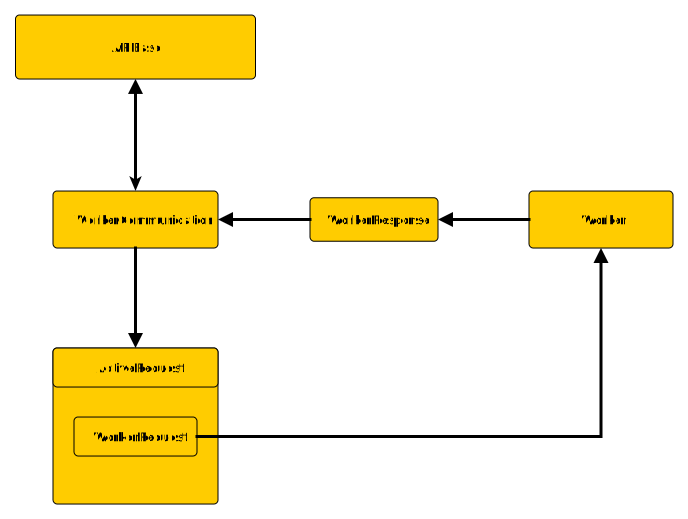
Frontend
The WorkerCommunication class creates its worker from a given js file. It then appends an event listener to the worker that is triggered on a message event. The behavior of the event listener is defined in onMessageEvent. onMessageEvent checks for each message of the worker if the received message id is in the active requests of the WorkerCommunication class. If it is, the promise is resolved and the active request is removed from the map of active requests. If it is not, the message is ignored because it can´t be processed. Each request has a timeout, that is specified in the WorkerRequest class. If a request times out it does not throw an error it resolves to a WorkerResponse that is unsuccessful. The WorkerResponse then has an error message and is of the class TimeOutResponse.
Worker
The worker sets up a onMessageEvent listener each message it receives is expected to be a WorkerRequest. The message it receives can`t actually have the class WorkerRequest but has to have the same properties. Each for the request the action is used to find the right function in the handlers defined in pyodideWorker.js. The function then is executed with the data provided in the request. When the function finishes the result is sent back via postMessage. The the result has to have the same properties as a WorkerResponse. If the function throws errors or generates warnings during the execution, these are caught and sent back in the errors and warnings fields.
Usage
Extending an API
- To Extend an API, you need to edit these files:
in
...Pyodide/src/scripts/pyodideAPI/<APIName>API.js<APIName> extend <APIBase | SolverInterface> { newFunction(data) { return this.getDataPromise("newFunction", data); } }
in
...Pyodide/src/scripts/pyodideWorker.jsconst handlers = { // ================= <APIName>API ================= /** @returns {Promise<HandlerResponse<newFunction>>} */ newFunction: async (data) => { let result = await self.pyodide.newFunction(data); // optionally catch errors or generate warnings, default values are [] for both errors = [...]; warnings = [...]; return new HandlerResponse(result, errors, warnings); },
The pyodideWorker holds references to Solvers in the backend, you need to know where to find your function or object and make the according call. The worker holds these references:
self.pyodide -> pyodide functionality itself like file system calls
self.solveModule -> an import of the file
...inskale/Pyodide/simplipfyAPI.pyto simplify solver object accessself.stepSolve -> the module used for solving stepwise in the frontend
self.kirchhoffSolver -> the module used for solving kirchhoff in the frontend
self.magneticTransformer -> the module used for solving magnetic in the frontend
self.svgGenerator -> the module used for generating circuit svgs in the frontend
self.drawingConfig -> the module used to configure how svgs are drawn for the frontend
You can add references if you need new ones, look at the StepSolveAPI as a good example.
in
...Pyodide/src/scripts/pyodideAPI/workerCommunication.js, extend the PyodideAPI JSDoc string/** * @typedef {Object} PyodideAPIMap * ... * // ================= <APIName> API ================= * @property {{input: {<paramName1>: <type>, <paramName2>: <type>...}, output: <type>}} newFunction
This is used for type inference to get autocompletion and type hints in the frontend and the correct return types of the backend function calls.
Creating a new API
To create a new API you need to create ...Pyodide/src/scripts/pyodideAPI/<APIName>API.js. If you extend
APIBase or SolverInterface depends on where the api is used. If the api is used to solve circuits on the learn Page
it needs to implement the SolverInterface else it can extend the APIBase class.
Add a new section with the API name to the handlers in ...Pyodide/src/scripts/pyodideWorker.js and add a new section
with the API name to ...Pyodide/src/scripts/pyodideAPI/workerCommunication.js. You need to declare each function
you want to use in each of those files.
Progress Bar
This tutorial will show you how to use the custom progress bar that show the progress for pyodide loading and will be enabled when pyodide loading is finished.
See allStyles.css for the style with .progress-stripes and @keyframes moveStripes
How to use
To make a button a progress bar, you have to add the class circuitStartBtn to the class list. You also need to add a few layers inside the button. An example of a button, that will be a progress bar and is enabled when loading is done is:
<button id="someId" class="circuitStartBtn btn btn-warning text-dark px-5">
        <div class="fill-layer"></div>
        <div class="progress-stripes"></div>
        <span class="button-text">start/or your text</span>
</button>
As mentioned before, this does not have to be a button, it can also be a div, circuitStartBtn is a custom class that will add the necessary styles to the element if the additional layers are inside.
If you want to create a button that contains the progress bar, you have to use the <button> tag like in the example above to be able to disable the button at the beginning, you can not use a div with the bootstrap btn class. After all you want the button to be enabled only when pyodide is loaded. Disable the button after creating it
let btn = document.getElementById("someId");
btn.disabled = true;
If you only want a progress bar that is not a button but just shows the pyodide waiting progress, you can make it a <div> with the class circuitStartBtn and the additional layers inside and don’t have to disable it.
When loading is done, the function
selectorBuilder.enableStartBtns()
is called to set disabled to false and enables all the circuit start buttons
and
finishStartBtns()
is called to do some final touches on all progress bars and circuit start buttons. You don’t have to adjust the functions if you use a progress bar like the example above.
Session Tracking
This page should explain how the session tracking via QR Codes is implemented and what the use case is.
Work flow
The idea behind session tracking is the following use case: - a teacher creates a QR code from a circuit file, the tracking id with name is cached in the local storage - the QR code can be shared with students - when the teacher navigates to the QR Track Viewer and selects this tracking id, all live events are shown in a table - only the live events will be shown there, not any events that happened before this time - when the teacher leaves the website, all events for this session are deleted from the server database
Implementation
On the server, a php script src/session.php is used to handle the database requests.
The script allowes the following actions:
- addSessionId: Adds a session id to the list of valid session ids
- deleteSessionId: Deletes a session id from the list of valid session ids
- send: Posts an event to the database with a session id
- read: Reads all events for a session id from the database
Only when a session id is added to the valid list of session ids, it can be used to post events to the database. When a session id is deleted, all events for this session id are deleted from the database.
Setup
- The session tracking needs the following installations to work:
a web server with php support (e.g. apache)
a mysql database (e.g. mysql, mariadb), we currently use mariadb
- Install the following packages on your server:
php
mariadb-server
mariadb-client
- Then create a database and a user for the session tracking and add the credentials to the .env file in
.../inskale/Pyodide/Scripts: DB_NAME=”some-db-name”
DB_USER=”some-db-user”
DB_PASSWORD=”some-db-password”
Creating the user can look like this for mariadb:
mysql -u root <<MYSQL_SCRIPT
CREATE DATABASE IF NOT EXISTS ${DB_NAME};
CREATE USER IF NOT EXISTS '${DB_USER}'@'localhost' IDENTIFIED BY '${DB_PASSWORD}';
GRANT ALL PRIVILEGES ON ${DB_NAME}.* TO '${DB_USER}'@'localhost';
FLUSH PRIVILEGES;
MYSQL_SCRIPT
You will need to export the .env variables to your server so they are available with getevn() for php. Use the envvars file e.g. /etc/apache2/envvars. Add the following lines
export DB_NAME="some-db-name"
export DB_USER="some-db-user"
export DB_PASSWORD="some-db-password"
To test if your apache server provides the environment variables correctly you can use this script:
<?php
echo "DB_NAME = " . getenv('DB_NAME') . "<br>";
echo "DB_USER = " . getenv('DB_USER') . "<br>";
echo "DB_PASSWORD = " . getenv('DB_PASSWORD') . "<br>";
?>
The output should look like this
DB_NAME = testTrackingDB
DB_USER = test-user
DB_PASSWORD = test-user-password
The values should be the ones you set in the .env file. If you dont see anything behind the = sings
your server does not provide the environment variables to php and you need to check your server configuration.
After that you can test the session tracking with the QR code tracking viewer and the QR code generator in the learn page.
You should see events appearing in the tracking viewer when you scan a QR code and interact with the circuit.
Frontend API
You can view the Frontend API docs here: Frontend API